[Experimental]
AutoVer can run as a normal Windows application which starts when you log in, or as a Windows Service which starts when Windows starts.
When the AutoVer program - also referred to as the UI - is run, it will detect the Service and connect to it (via default port of 9072 specified in AutoVer.ini). This UI can be closed without affecting or stopping the Service.
[In an upcoming version] When installing AutoVer, there is an option to install the AutoVer Windows Service. If you did not tick those boxes, and now wish to install and run the Service, it can be done in a few easy steps below.
To manually install the service: (to reinstall the AutoVerService, it must be stopped and uninstalled first!)
Exit AutoVer if it is running.
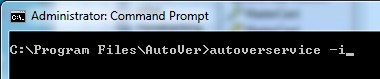
Go to the AutoVer folder on your computer by: Start, Run, Type CMD {enter}. Type cd \Program Files\AutoVer {enter},
then run AutoVerService -i
Check the log in c:\ProgramData\AutoVer\AutoVerServiceLog.txt for the installation status
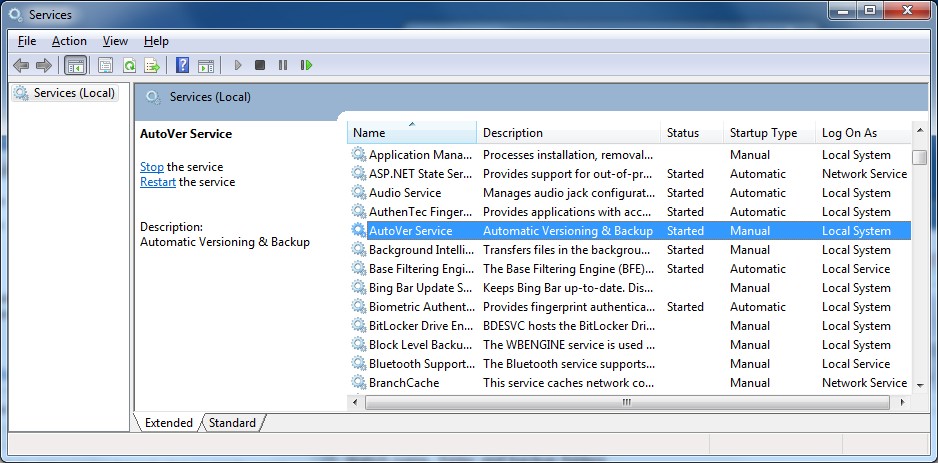
Go to Control Panel, Administrative Tools, Services, Select AutoVer Service and Start. (or restart your computer if that is easier)
If you wish to alter the user account AutoVer uses, you can change this here too.
To manually uninstall the service:
Go to Control Panel, Administrative Tools, Services, Select AutoVer Service and Stop.
Go to the AutoVer folder on your computer: Start, Run, Type CMD {enter}. Type cd \Program Files\AutoVer {enter},
then run AutoVerService -u
Check the log in c:\ProgramData\AutoVer\AutoVerServiceLog.txt for the installation status
Copyright © 2007-2012, Hunter Beanland
Created with the Freeware Edition of HelpNDoc: Easy to use tool to create HTML Help files and Help web sites